Product photos before your stock arrives: launch with images you can stand behind
Your launch date is set and your stock isn't here. How to make launch images from one sample, what to label, and what to swap when the first cartons land.
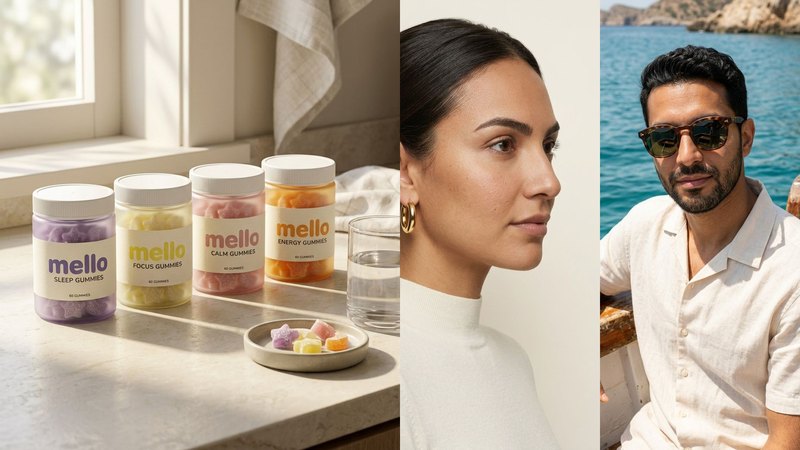
Most launches run into the same wall. The date is set, the pre-order page has to go live, the ads need a few weeks to warm up, and the product isn't here yet. The final packaging is still at the printer, the sample is somewhere between the factory and your door, and a studio can't book a shoot for a product it can't hold. So the date slips, or the page goes live with a placeholder.
People search for a way around it: product photos before inventory arrives, pre-order page images, launch images before samples. The answers today mostly come from pre-order apps, which tell you to use "prototypes, 3D renders or production samples" and move on to the checkout settings. Nobody explains how to make those images good, or how to keep them honest.
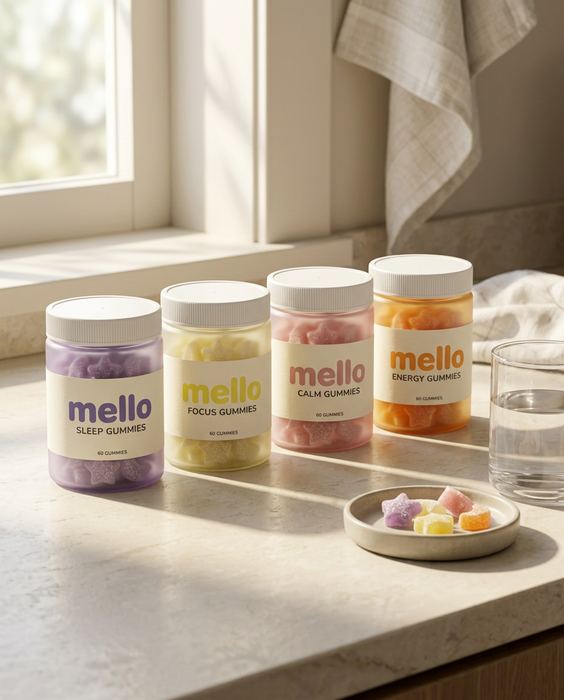
We make AI product images and video ads for DTC brands, and every brand in our work is a concept: a product that doesn't exist and never sat on a studio table. KESTREL sunglasses, MELLO vitamin gummies and ORRA gold hoops each began as one packshot (plus a character sheet where there's a model) and became a full campaign. That's the same position you're in before launch. Here's how we'd use it.
1. One sample is enough, if it's the final one
You don't need stock. You need one thing that looks exactly like what will ship. In order of preference:
- A pre-production sample. Most factories send one before the full run. Put it by a window, on a plain background, label square to the camera, and take a sharp phone photo. That's the packshot every other image copies.
- A 3D render from your packaging or CAD file. Good for hardware, bottles and boxes, as long as the materials, colours and finish are right. A render that looks plastic makes every scene look plastic.
- A flat mockup of your label on a stock jar. Fine for a teaser or a waitlist page. Not good enough for the product page, because the jar, the cap and the colour are guesses.
Whatever the input, it must match what will ship: the final colour, the final label, the final cap. Every image you make inherits its mistakes.
2. Write down what's final and what isn't
Before the first prompt, make a short list: what is locked, and what could still change. On a typical launch, the bottle shape is final but the cap colour isn't, or the label design is final but the net weight is still being confirmed.
Then keep anything that isn't final out of the images. If the cap colour might change, frame the shots so the cap is small, or wait. If the claims on the label are still with your regulator, don't zoom in on them. And keep a note of which images used which version of the packshot, so you know exactly what to redo if something changes.
3. Make the launch set as a shot list
A launch needs more images than a product page, and each one has a job. Write the list first. This is roughly the set we'd make for a launch:
1. The hero on white. Front-facing, the label to the camera, for the pre-order page.
2. In hand. A hand holding the product shows its real size, which is the first question on a product nobody has seen yet.
3. The world. One or two scenes in the brand's palette and light, so the launch looks like a brand and not a listing. MELLO's launch banner is four jars on a sunny kitchen counter, labels to the camera.
4. The range. If you launch with flavours, colours or sizes, make every variant from the same packshot and change one thing at a time. How: From one photo to a brand kit.
5. Every ad size. 9:16 for Stories and Reels, 4:5 for the feed, 1:1 for catalogues, each made at its own size, not cropped later. The sizes and what to keep clear in each: Every ad size, one product.
6. A short video. A 15-second vertical film from your best still is the teaser that runs before launch day. KESTREL's film started from one packshot: AI product video from one image.
4. Be honest on the page
Pre-launch images are a promise. Keep it.
- Say what they are. A line under the gallery is enough: "Pre-production images. The final product may vary slightly." Buyers accept that. What they don't accept is a product that arrives looking different from the picture with no warning.
- Show the delivery date. Next to the price, not in the small print.
- Don't show what you can't ship. No accessory that isn't in the box, no colour that isn't in the run, no size that isn't on the order form.
- Marketplaces come later. Marketplaces generally expect photos of the actual item for listings. Run the pre-order on your own site, and list on marketplaces once real stock is in hand. Check each platform's current image rules before you list.
5. Swap when the stock lands
When the first cartons arrive, take a real photo of a real unit, the same plain front view as the packshot, and check every launch image against it: the label word for word, the cap, the colour, the size in hand. Keep the images that still match. Redo the ones that drifted. Put the real photo in the hero spot on the product page.
Done this way, nothing you showed before launch has to be taken back, and the launch images keep working as ads for months. The full check we run on every image is in the AI product image checklist.
Where we wouldn't use AI before launch
This is the part pre-order guides leave out.
- A design that isn't final. If the product could still change, don't make a campaign around it. Wait for the sample, or show only what's locked.
- Unboxing and packaging shots of boxes that don't exist yet. Show the outer packaging only once it's printed.
- Features you can't show yet. Waterproof, long battery life, fits a 15-inch laptop: show those with the real product, after you've tested them.
- Reviews and "customers love it". Nobody has it yet. Never generate reviewers or customer photos, before launch or after.
- Crowdfunding backers. Backers fund a real prototype. Show the working prototype as it is, and label any render as a render.
Where a platform or market requires AI disclosure, apply it. Labelled, honest, good-looking images still sell.
What it costs, roughly
A studio shoot for a launch set typically runs $2,000 or more and takes 2–3 weeks, and it can't start until the product exists. Doing it yourself with ChatGPT or Gemini costs a subscription and your time. Our Launch package is $749 for up to 3 products: 30 images across 1:1, 4:5 and 9:16, and 3 vertical videos of 15–30 seconds, in 10 days. For one product, Pilot is $199 for 8 images and a 15-second vertical video in 5 days. Here's the side-by-side comparison.
Do it yourself, free
Everything above is written out step by step, with the exact prompts, in our free library (no email, no sign-up). Start with the AI product image checklist: lock the product, go close, test the colour, build the world.
If you'd rather we did it, send one photo of your sample and we'll send back a direction.
The free guides behind it.
 Step 10
One photo, a whole brand kit
The guide, every variant in one look, the listing image and the launch banner, from one packshot.
[ Open the guide → ] Step 11
Every ad size, one product
Stories, feed, square, banner and product page: the sizes, and what to keep clear in each.
[ Open the guide → ] Step 01 · Start here
The AI product image checklist
Lock the product, go close, test the colour, build the world. The checks we run on every set.
[ Open the guide → ]